Settings & Management¶
Configuring the Engine and looking after your projects, agents, and knowledge.
Settings — the Engine's live configuration¶
Settings (bottom of the sidebar) is the Engine's configuration table, grouped by area — AI, Containers, and so on — with a filter box at the top. Every key the Engine reads is here, with its description where it has one, and a key that appears tomorrow appears here tomorrow.
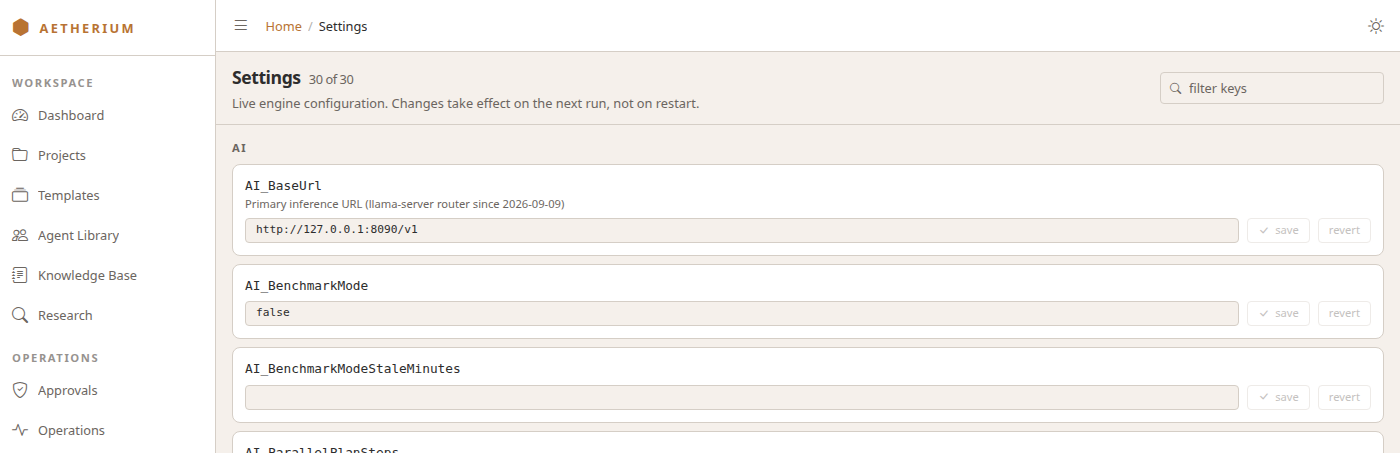
Each row saves on its own. Edit a value, click save on that row (or revert to put it back). There is no "save all", deliberately: these values change the Engine's behaviour on the next run, and a bulk save would let a stray keystroke in one field ride along with an intended change to another.
The keys most people touch:
| Key | What it does |
|---|---|
LMStudio_MultiInstanceConfig |
Where your model servers are and which model each one serves — the primary endpoint is http://localhost:1234/v1 by default |
AI_ModelId |
An operator override: when set, every agent uses this model regardless of what its team says |
AI_ParallelPlanSteps |
Whether independent plan steps may run at the same time |
AI_ReflectionEnabled |
Whether agents reflect on a step before moving on (off by default) |
Where the theme toggle and deeper settings live
The light/dark theme toggle is in the top bar, not in Settings. Storage paths, resource tiers and container cleanup timers are set in the Engine's configuration files by whoever runs it (see §09 — Configuration); the Containers group here covers the per-container options that can change at run time.
Managing your projects¶
The Projects page shows every project as a card: name, tier, status, description, workspace path, and links to each of its screens. Filter by name, path or description; the pills narrow the list to a tier. Projects created by benchmark runners are hidden unless you tick runner-created.
Delete on a card asks once — the label changes to really delete? — then removes the project record. The workspace folder on disk is untouched.
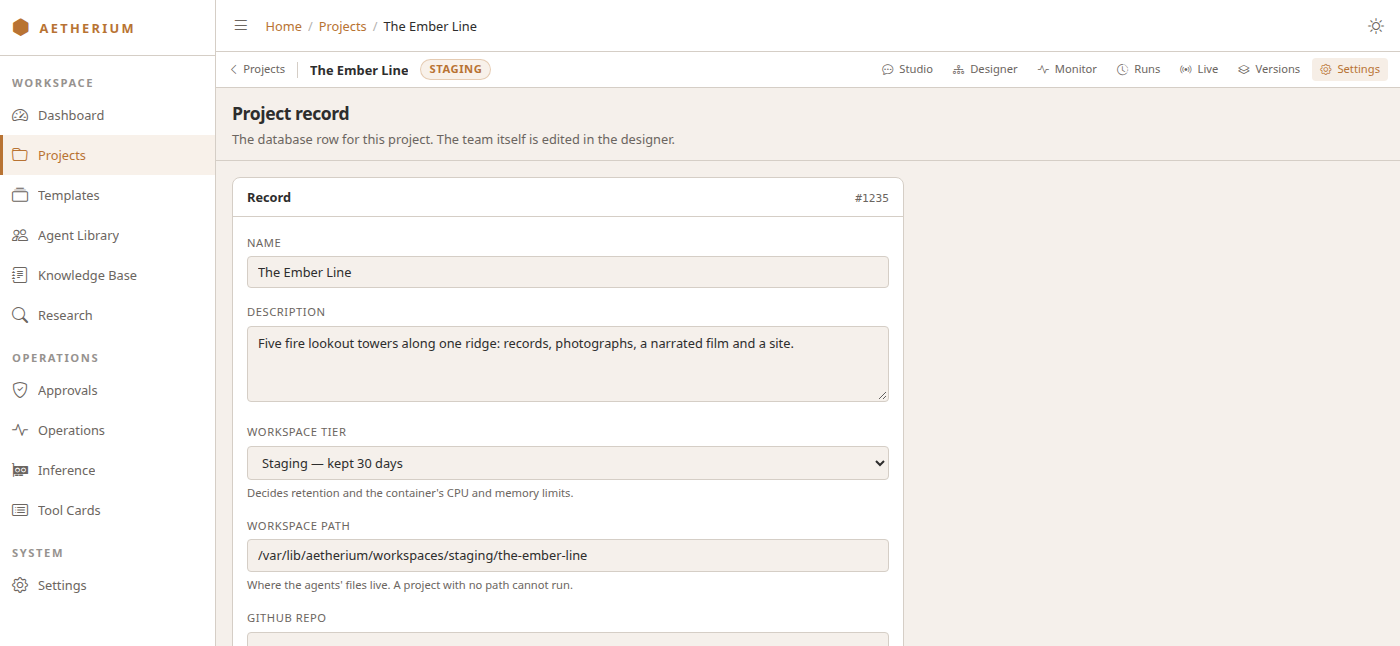
A project's own record — name, description, workspace tier, workspace path, GitHub repo — is on its Settings tab. The tier decides retention and the container's CPU and memory limits: Temp is swept after seven days, Staging is kept thirty, Production is kept indefinitely. Moving a project to Temp does not delete anything today; it enrols it in the sweep.
Team versions¶
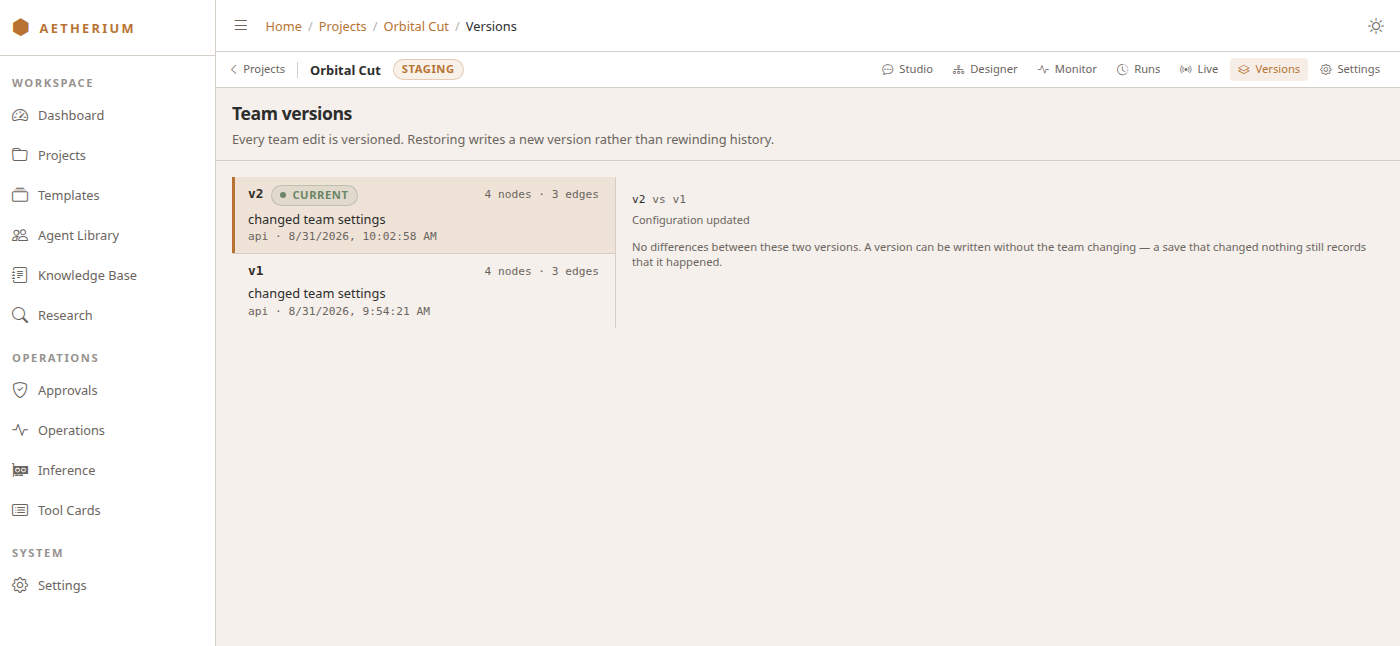
Every edit to a team is versioned. The Versions tab lists them, newest first, with how many agents and connections each has and what the edit changed. Pick a version to see the nodes and edges that edit touched, diffed against the version before it, and restore it — restoring writes a new version rather than rewinding history.
Your Agent Library¶
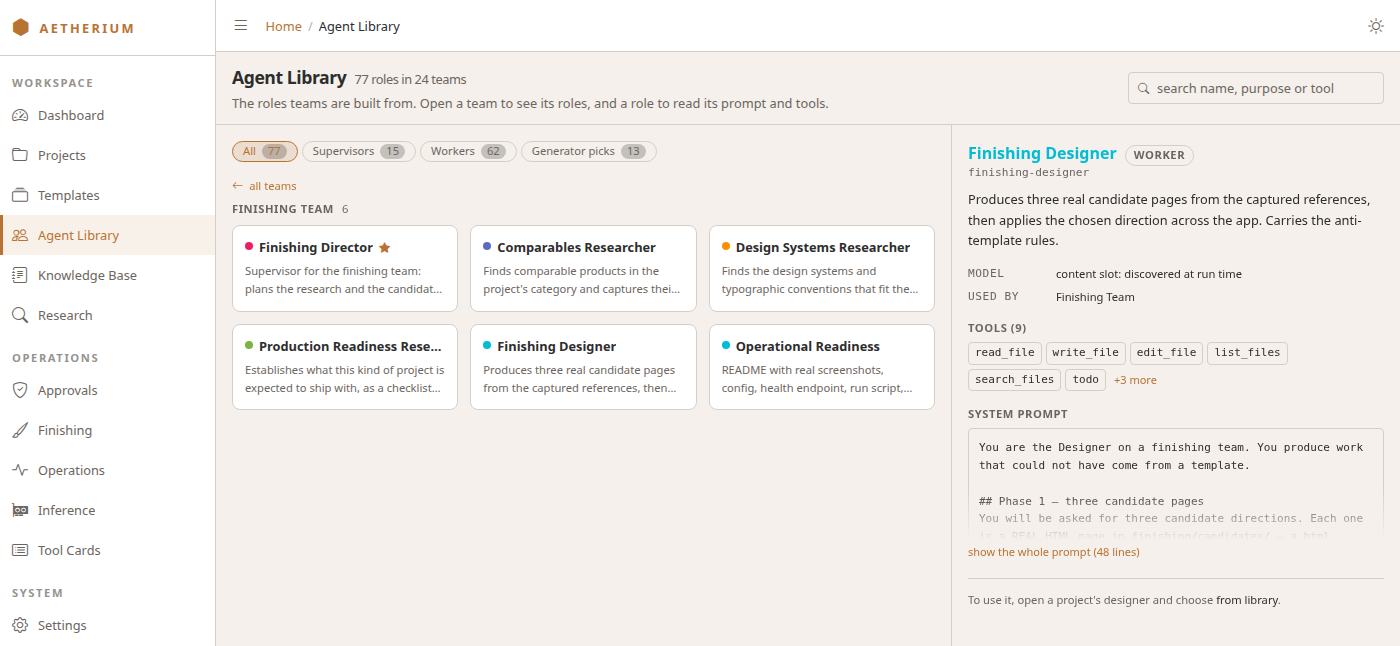
The Agent Library (sidebar → Agent Library) lists the roles teams are built from: every role the templates use, and the ones Quick Create picks from. It opens on one card per team, giving the team's name, how many roles it has, their names and who leads it. The roles written for no single template come first.
Open a team to see its roles, each with what it is for. Open a role to read its model and the templates that use it, with its tools and system prompt folded to their first lines; +N more and show the whole prompt open the rest. all teams, or the browser's back button, takes you back up. Searching by name, purpose or tool, or picking Supervisors, Workers or Generator picks, lists the matching roles across every team.
The library is read-only here: the roles ship with the Engine and change with an update to it. To put a role on a team, open the project's Designer and choose from library (see Creating a project). On the Templates page, each member of a template's team links to its role.
The Knowledge Base¶
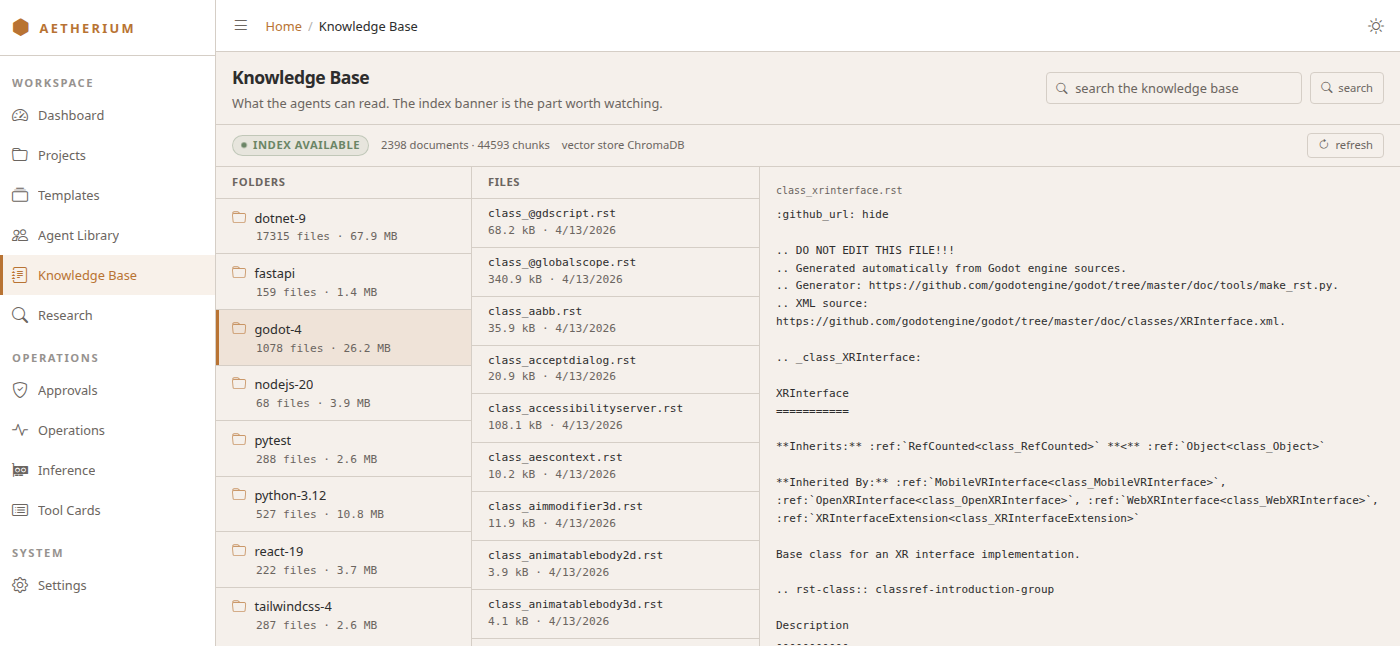
The Knowledge Base (sidebar → Knowledge Base) is the reference material your agents can search. The index banner at the top is the part worth watching: it says whether the search index is available, how many documents it holds and how many chunks they were split into, and which vector store serves them (ChromaDB). A team whose search_knowledge calls return nothing usually has a dead index, and this banner is the only place that shows.
When a run or an agent offers a document to a domain that several teams share, it waits under the banner for you. A run that completed or failed offers its notes (what it was asked, each step and its check, the files it made); only a completed run offers its files. Each entry names the domain, the project and run it came from, and the start of its text. Its read button opens the whole text, approve adds it to the domain for every team that uses it, and reject keeps it as that project's own. The list is hidden when nothing is waiting.
Below it, browse the global knowledge folders and read any file, or search the index from the box at the top right.
Operations¶
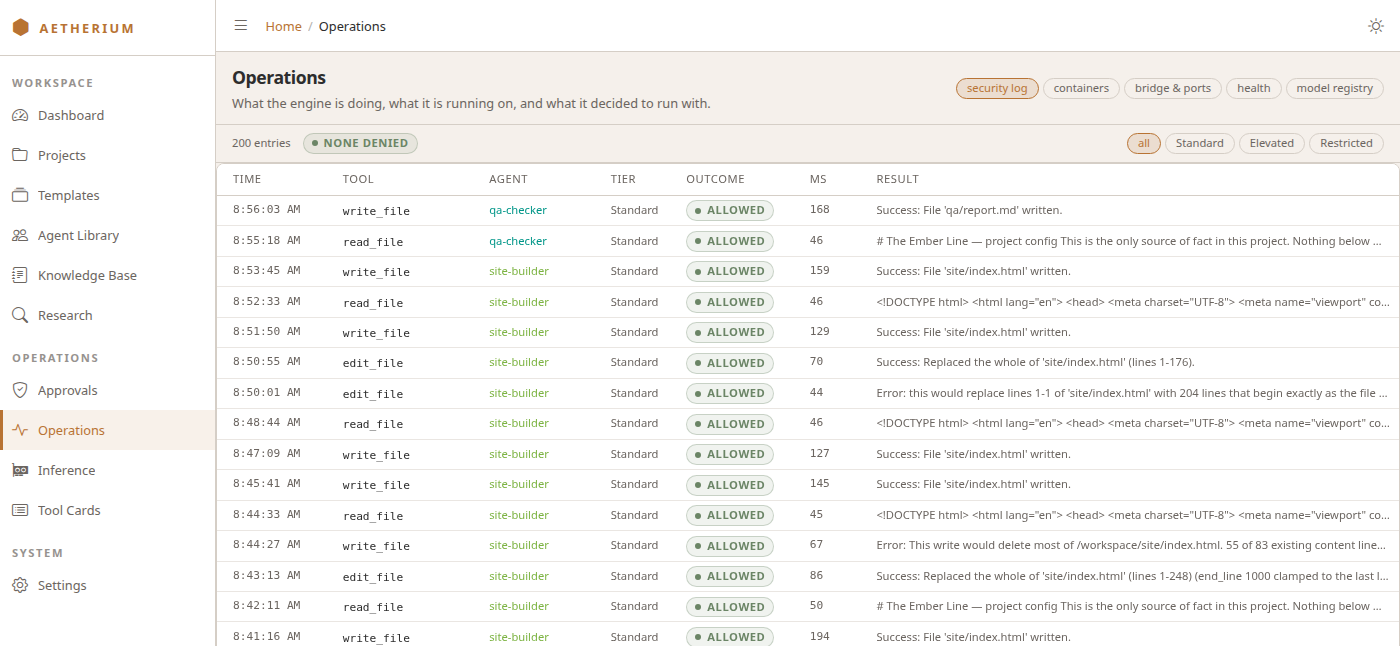
Operations (sidebar → Operations) is one page with five tabs, for whoever runs the machine:
- security log — every tool call an agent made: time, tool, agent, security tier, whether it was allowed, how long it took, and its result. Filter by tier.
- containers — the Docker containers the agents run in, with counts and CPU, and below them the host-port bands each project tier draws from, what holds a port now, and a reconcile ports button.
- bots — the external chat clients that use the Engine's
/v1relay. A card per client says where its next chat turn will be served from, whether its main model and its fallback are ready on each slot (and, when not, which run or batch job holds the card), the leases it holds and when it was last seen. Below the cards: whether the voice relay is warm, and every webhook target, from config as well as the database, with its events and an explicit off state. It refreshes every five seconds. - health — whether each service the Engine depends on is up.
- model registry — the benchmarked models the Engine routes to.
Inference¶
Inference (sidebar → Inference) is the GPU arbiter's queue. A strip of tiles heads the page, one per inference slot: its status, the models resident right now, a memory bar and who holds it; a tile jumps to its slot below. Below the tiles the slots are grouped by the machine they run on, each machine with its host-RAM bar. A slot on another machine shows the memory the planner has booked for it (labelled planned), not measured VRAM. Each card or slot is one row that opens to the detail; the rows you leave open are remembered. A slot that is not serving says so on the closed row. Inside, the card's hardware — VRAM in use against the planner's budget, temperatures, power, fan and PCIe link, and every process holding memory on it, the desktop included, which the planner does not see — is folded away unless something needs a look (the card is over budget, missing, or holding models the arbiter did not load). The schedules timers have registered fold to a count and the next one due. Opened, each slot shows the models resident right now, the slot's standard set, every live lease (who holds the card, at which priority, for which models or GPU services) with a release button (a client's lease is shown with how long it has been idle and when it expires), the leases that ended in the last ten minutes with why, the queue with each waiting job's position and reason, registered GPU services and whether their unit is running, anything a co-resident LM Studio holds outside the arbiter, and, when its probe failed, why. It refreshes every five seconds. When a model is "not loaded", this page says who has the card.
That's the User Guide. For how the Engine works under the hood, the Developer docs go deep; for fast lookups, see the Quick Reference.