02 — Getting Started¶
From zero to a green Engine and a working multi-agent team in under 30 minutes.
The Aetherium Engine runs locally on your hardware. There is nothing to sign up for, no API key to provision, no cloud project to create. You clone the repo, bring up two containers, point the Engine at a local LLM, and you are running a four-agent team building a real web app. This section walks both supported operating systems side by side.
What you need¶
Hardware floor¶
| Resource | Minimum | Recommended |
|---|---|---|
| GPU | 16 GB VRAM | NVIDIA DGX Spark, or any 24 GB+ workstation card |
| System RAM | 32 GB | 64 GB |
| Disk | 500 GB free | NVMe SSD, 1 TB+ |
| Network | LAN only — no internet required at runtime | — |
NVIDIA CUDA is the smoothest path. AMD RDNA3+ cards work on Ubuntu via ROCm or Vulkan; AMD on Windows is supported but degraded — model load times are longer and some inference engines fall back to CPU. If you are buying hardware for the Engine, the DGX Spark is the reference platform.
Software prerequisites¶
| Tool | Version | Notes |
|---|---|---|
| .NET SDK | 10.0 Preview or later | The Engine targets .NET 10 |
| Git | Any recent | For cloning the repo |
| Docker | Docker Desktop (Windows / macOS) or Docker Engine (Linux) | Runs PostgreSQL and ChromaDB |
| OpenAI-compatible LLM server | LM Studio recommended | Any server that speaks /v1/chat/completions works |
GPU drivers
NVIDIA users install the current CUDA driver from NVIDIA's site — LM Studio detects CUDA automatically and offloads layers to the GPU. AMD users on Ubuntu install ROCm (preferred) or fall back to Vulkan; both are detected by LM Studio's runtime selector. AMD on Windows works through Vulkan only and is slower — if you have an AMD card and the option, run Ubuntu.
Step 1 — Install platform dependencies¶
Install the .NET 10 SDK from Microsoft's downloads page, then verify:
You should see .NET SDK Version: 10.0.x near the top. If it reports an older SDK, install the preview channel.
Install Docker:
Confirm Docker is reachable:
Step 2 — Install an inference server¶
LM Studio is the recommended path. Download from lmstudio.ai, install, open the Developer tab, and start the server. The default endpoint is http://localhost:1234, and OpenAI-compatible mode is on by default.
Ollama is the most common alternative. It exposes an OpenAI-compatible endpoint at http://localhost:11434/v1 when you set OLLAMA_ORIGINS=* and start ollama serve. Any other server that speaks /v1/chat/completions — vLLM, llama.cpp's server, TGI, LocalAI — works the same way: you point the Engine at the URL in Settings and pick a model.
Step 3 — Download the models¶
The Engine ships templates pinned to two models. Both are available in LM Studio's catalog.
| Role | Model | Why |
|---|---|---|
| Supervisor | ministral-3-14b-reasoning-2512 (Q4_K_M) |
Strong planning and delegation behavior. Take the 4-bit quant: at 8-bit it does not fit on a 16 GB card at all, even alone |
| Worker | google/gemma-4-e4b |
Small enough to stay resident beside another model on a 16 GB card, and the only worker model the control arm has delivered a full run on |
In LM Studio, open the Discover tab, paste each model ID into the search bar, and click Download. Combined download is roughly 15 GB.
Why two models — not one
A supervisor's job is to break a task into ordered steps and pick which specialist runs each step. A worker's job is to write code, run shells, read files, and report back. Those are different cognitive shapes. Pinning the right model to each role consistently produces better builds than running a single jack-of-all-trades. The Engine's ModelSchedulerService hot-swaps between supervisor and worker as the conversation progresses — first turn is slower because of the load, subsequent turns are warm. For tuning advice (or running both roles on the same model when VRAM is tight), see §11 — Benchmarking.
Whether the pair co-resides depends on your card. The Engine plans every load against a VRAM budget (MaxVramGB minus HeadroomGB) and prices each model from measured cost or, for an unmeasured one, its on-disk size plus overhead plus KV cache. A model that does not fit beside what is protected (another lease's models, or a model the Engine did not load) is refused with the arithmetic rather than loaded by evicting it — so a supervisor model too large for your budget fails visibly instead of thrashing. The instance's standard set is the exception: a run that needs its room evicts it and the arbiter restores it once the slot is idle. Two things decide whether a supervisor fits beside a resident worker, and on a 16 GB card you usually need both. Quantisation: a 14B at 8-bit exceeds the whole budget on its own. Where its KV cache lives: a 14B at 4-bit measured 165,178 bytes per token of KV on the GPU, which at a 49,152-token window is over 8 GB of KV by itself and fails the load outright — moved to system RAM, the same model is flat in context and fits with room to spare. The per-model load_config in the harness-overrides sidecar is what forces that placement; the built-in heuristic only catches models advertising 26B and up, so a 14B needs the override written explicitly. Measure the model and record it under ModelCosts, or the planner prices it from the pessimistic fallback and may refuse a model that would have fitted. See §11 — Benchmarking.
Step 4 — Clone the repo¶
The repo ships an appsettings.Local.json template at Aetherium_Refactor/Aetherium_Refactor/appsettings.Local.json for local secrets. It is gitignored, layered on top of appsettings.json at startup, and the placeholder REPLACE_ME_VIA_LOCAL_OVERRIDE marks every value you should rotate before doing anything sensitive. Storage paths are driven by the AETHERIUM_WORKSPACE_ROOT, AETHERIUM_KNOWLEDGE_PATH, AETHERIUM_ARCHIVE_PATH, and AETHERIUM_TEMP_PATH environment variables — the start scripts in the next step set sensible defaults. For the full configuration reference, see §09 — Configuration.
Step 5 — Bring up the database and vector store¶
From the repo root:
You should see two containers running: aetherium-refactor-postgres (PostgreSQL 15 on port 5432) and aetherium-chromadb (ChromaDB on port 8000). The Engine uses Postgres for projects, agents, conversations, and logs; ChromaDB stores per-project knowledge collections.
ChromaDB needs a POSIX-locking filesystem
The compose file defaults the ChromaDB data volume to /var/lib/aetherium/chroma-data on Linux. Do not move it onto an NTFS mount. ChromaDB's SQLite backend uses POSIX advisory locks that NTFS does not provide; every POST /collections returns 500 once the file lock fails. On Windows + Docker Desktop the WSL 2 backend handles this transparently — the bind mount lives inside the WSL VM's ext4 disk, not on the host NTFS volume. If you override the volume via AETHERIUM_CHROMA_DATA, point it at ext4, btrfs, or xfs.
If you already run a Postgres you want to reuse, set ConnectionStrings:DefaultConnection in appsettings.Local.json and skip the Postgres service in docker-compose.yml. ChromaDB has no such opt-out — it is always launched by the compose stack.
Step 6 — Build and run the Engine¶
For day-to-day development, run the server project directly:
The repo also ships a Linux wrapper script, start-aetherium-linux.sh, that sets the storage environment variables, runs dependency health checks, and starts the Engine.
When you're ready to deploy to a separate host, see §14 — Deployment. For dev, dotnet run is all you need.
Phase 1 — Engine green¶
In a second terminal, hit the health endpoint:
A healthy response means the database is reachable, migrations have applied, and the API is serving. Open http://localhost:5257 in a browser — it redirects to /app, and the dashboard renders.
Navigate to Settings. Under LM Studio → Primary, paste your inference URL (http://localhost:1234/v1 for a local LM Studio) and click Save. Within a few seconds the model dropdown populates with everything LM Studio has loaded; pick ministral-3-14b-reasoning-2512 as the default.
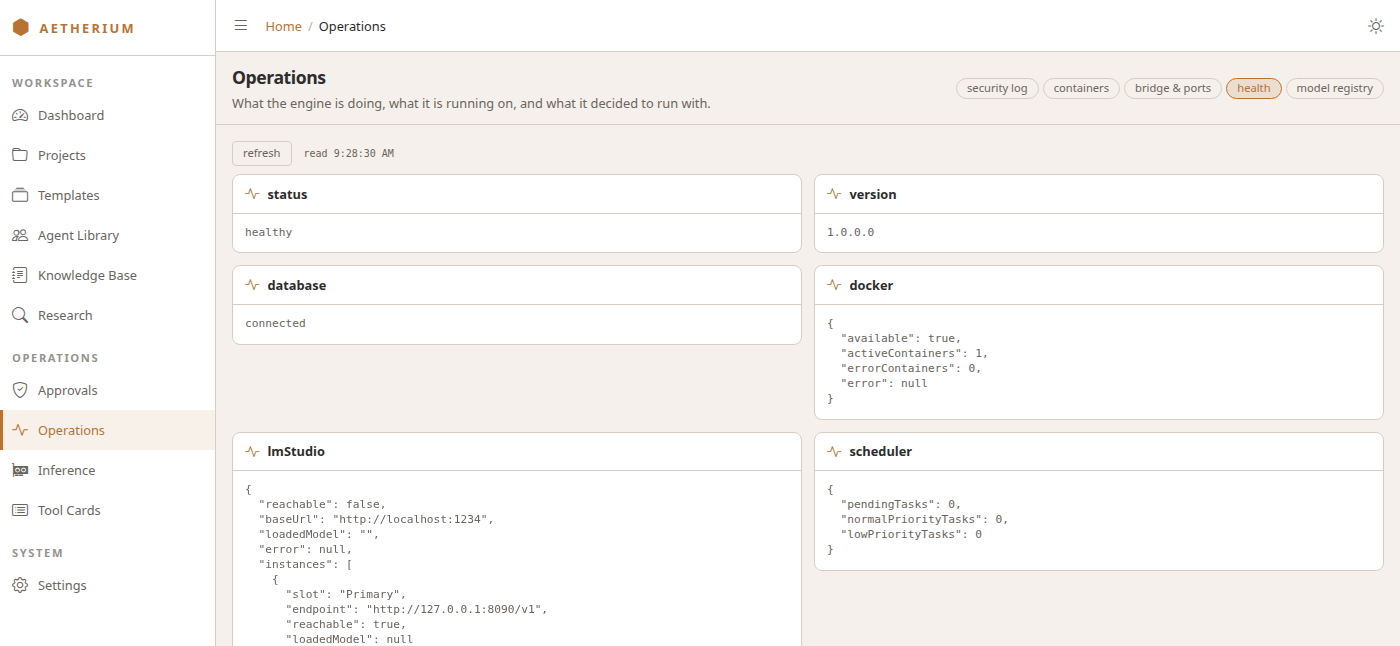
Phase 1 complete
curl /api/health returns healthy and models populate the dropdown in Settings. The Engine is running. Time to build something.
Phase 2 — Your first multi-agent team¶
Now build something. The canonical example is fullstack-web, a four-agent Hierarchical team that builds web apps with an Express backend and a vanilla-JS frontend. The agents are Project Lead (supervisor), Frontend Developer, Backend Developer, and QA Engineer.
sequenceDiagram
    participant U as You
    participant UI as Unified Studio
    participant T as TemplateService
    participant DB as PostgreSQL
    participant FS as Workspace
    participant CDB as ChromaDB
    participant D as DockerService

    U->>UI: Pick fullstack-web, name project, click Create
    UI->>T: POST /api/templates/create
    T->>DB: Insert Project + 4 Role rows
    T->>FS: Scaffold 14 directories + project-config.md
    T->>CDB: Create per-project collections, seed knowledge
    T->>D: Provision node:20-slim container (persistent)
    D-->>UI: Workspace Ready (SignalR)
    UI->>U: Chat input enabled
Click Projects → New From Template¶
What you see: a grid of available Workflow Templates, each card showing name, description, and agent count.
What's happening: TemplateService loaded every JSON file under Templates/*.json at startup. The fullstack-web card you are looking at came from Templates/fullstack-web.json.
Click fullstack-web¶
What you see: a detail view listing the four agents, the Hierarchical topology, the scaffolded directory tree, and per-agent tool allowlists.
What's happening: the template has been parsed and bound to the detail view. None of it has been written to disk or to the database yet.
Name the project and click Create¶
What you see: a brief progress indicator, then the new project opens in Unified Studio.
What's happening under the hood:
- A new
Projectrow in PostgreSQL. - Four
Rolerows — one per agent — each with persona, system prompt, tool allowlist, and model assignment (supervisor and workers both pinned togoogle/gemma-4-e4bin this template). - Three directories scaffolded inside the workspace on disk (
src/,public/,tests/) — the rooted-application layout the template's role prompts describe. - A
project-config.mdfile written from the template'sprojectConfigTemplatefield, capturing the project name, ports, and dev standards — one copy at the project root for operators and one insideworkspace/, which is what the agents' container mounts and what their "readproject-config.mdfirst" instruction reaches. The two copies resolve the template's workspace-path placeholder differently and deliberately: the root copy carries the host path, and the copy the container mounts carries/workspace, which is the only path an agent can act on. - Per-project ChromaDB collections created and seeded from the template's
target_collections(theweb-developmentcollection in this case). - A Docker container provisioned in the background —
base_image: node:20-slim, persistent. - SignalR notifications fired so the UI shows the new project in the sidebar.
Wait for "Workspace Ready"¶
What you see: the chat input becomes enabled when the workspace and container are both ready.
What's happening: the DockerService is pre-warming the container; the chat will not accept input until the container responds to a health probe and the workspace tier passes resource checks.
For the deeper mechanism behind any of these steps, see §06 — Key Services and §08 — Templates.
Send the first message¶
Paste this into the chat:
Build me a simple to-do list web app. Backend in Express on port 3101 with
GET/POST/DELETE for todos. Frontend at port 3100 with HTML/JS to view, add,
and remove todos.
The task names the layout and the ports, so the team follows it — backend on 3101, frontend on 3100, both bound to 0.0.0.0 inside the container. (When a task names nothing, the template's default is one rooted application on 3100 serving its own pages.)
Watch the chat¶
Tokens stream as they generate. The Project Lead reads project-config.md, calls create_plan with concrete steps and required tools, and starts delegating. The Backend Developer writes Express routes, runs npm install, and starts the server. The Frontend Developer writes HTML / JS / CSS, runs its own install, and serves on 3100. The QA Engineer curls both endpoints and writes a test report. Tool calls appear as expandable summaries in the chat; delegation breadcrumbs show the supervisor → worker → supervisor reply chain.
When the team finishes, look in the workspace on disk:
<workspace>/<project-slug>/
├── frontend/
│   ├── index.html
│   ├── app.js
│   ├── style.css
│   └── package.json
├── backend/
│   ├── package.json
│   └── src/
│       ├── index.js
│       ├── routes/
│       ├── models/
│       └── middleware/
└── tests/
That is Phase 2. A real four-agent team built a working two-tier web app from one sentence.
What just happened¶
- The Project Lead turned your prompt into a structured plan and delegated each step to the specialist best suited for it — that is the Hierarchical topology in §01 at work.
- The specialists called workspace and shell tools through MCP server classes routed by
McpToolRouter— the architecture covered in §07 — MCP Architecture. - SignalR pushed every token, every tool call, every delegation to your browser in real time, so you saw the build happen instead of waiting for a final answer.
Where things live on disk¶
| What | Default location |
|---|---|
| Workspaces | AETHERIUM_WORKSPACE_ROOT/<tier>/<project-slug>/ |
| Knowledge base | AETHERIUM_KNOWLEDGE_PATH/ |
| Archived projects | AETHERIUM_ARCHIVE_PATH/ |
| Temp / scratch | AETHERIUM_TEMP_PATH/ |
| ChromaDB data | /var/lib/aetherium/chroma-data (Linux) or the WSL 2 VM (Windows) |
| PostgreSQL data | ./postgres-data (compose default) or AETHERIUM_POSTGRES_DATA if set |
The Production, Staging, and Temp workspace tiers carry different retention and resource policies. The full reference is in §09 — Configuration.
Where to go next¶
- §04 — Core Concepts — the vocabulary and mental model behind agents, topologies, and the ReAct loop you just watched.
- §03 — System Architecture — how the server, client, database, and inference router fit together at the system level.
- §09 — Configuration — every key, every env var, every default in one place.