Getting Your Output
Your team writes its work — code, documents, images — into the project's workspace. Here's how to see what was written, and how to get the actual files.
See what was written
The trajectory. Open Runs and pick the run. Every file the team wrote is a write_file or edit_file row, with the outcome on the row — created, no change, or the before → after size. Click a row to see the file's diff in the detail panel.
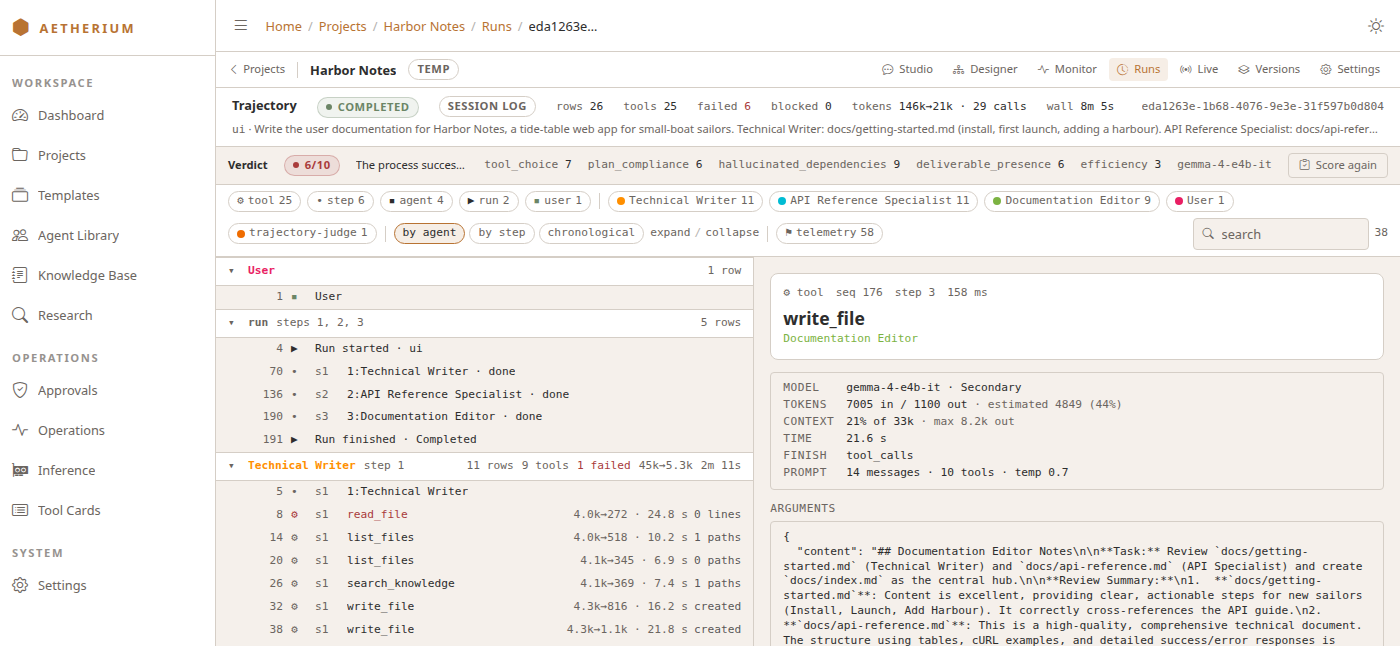
The Studio. The same writes appear in the conversation as one-line write_file and edit_file rows, in the order they happened. Click one to open its DIFF card.
Media is a file like any other. A team with the image and voice tools writes photographs and recordings into the workspace the same way, and a team with a shell can cut them into a film there. The excerpt below is the first 29 seconds of a 105-second film one run produced: the team's own photographs, made in the run, over its own narration, rendered in the run, assembled by a shell command in the project's container.
Get the files off the machine
This is the part to know up front:
There is no download or export button
The web client lets you see what was written and read the diffs, but it does not offer a "Download" or "Export" for workspace files. To get the actual files, retrieve them from the project's workspace folder on disk.
Every project has a workspace folder on the machine running the Engine. Its path is shown in two places:
- On the Projects page, on the project's card (the line with the drive icon).
- On the project's Settings tab, in the Workspace path field.
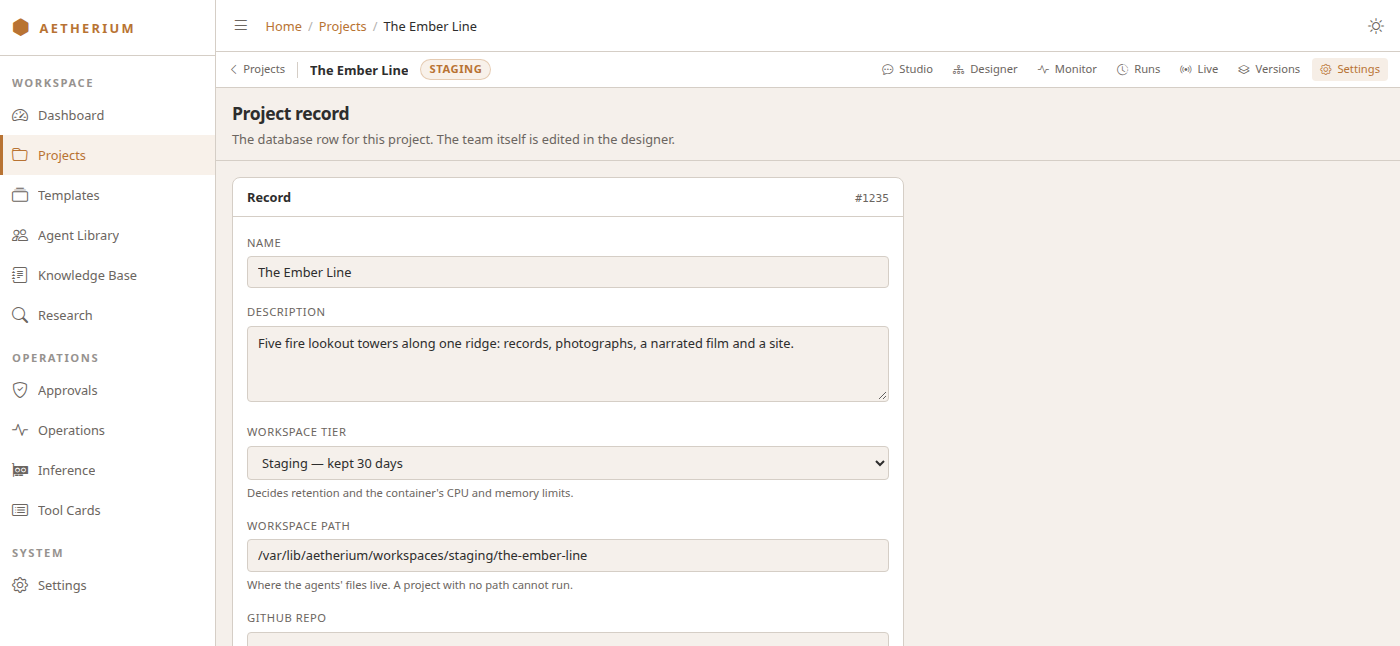
Open that folder on the host machine (or however you access that machine's files) to copy out your results. The team's files are under its workspace/ subfolder, in the structure the team built.
Plan for retrieval
If you know you'll want the output as files, note the workspace path when you create the project. A project in the Temp tier is swept after seven days; move it to Staging or Production on its Settings tab if the output should outlive that.
A note on the Knowledge Base
The Knowledge Base page shows the global reference folders your agents can search, not a project's workspace. Project files the agents wrote are read from the trajectory or from disk, as above.
That's the full loop: create a project → run the team → get your output. The last page covers settings and managing your projects.