Running a Team
Your project is open in the Designer. Click run & chat (or the Studio tab on the project bar) to put the team to work.
Send the first message
- At the bottom of the Studio is the message box: "Describe what to build. Name the files you expect, and what done looks like." Type what you want the team to do.
- Press Send.
That's it — sending a message is what starts the team. There's no separate "Run" button. The badge next to the Studio title switches from idle to running, and the conversation fills in as the team works.
What you'll see as the team works
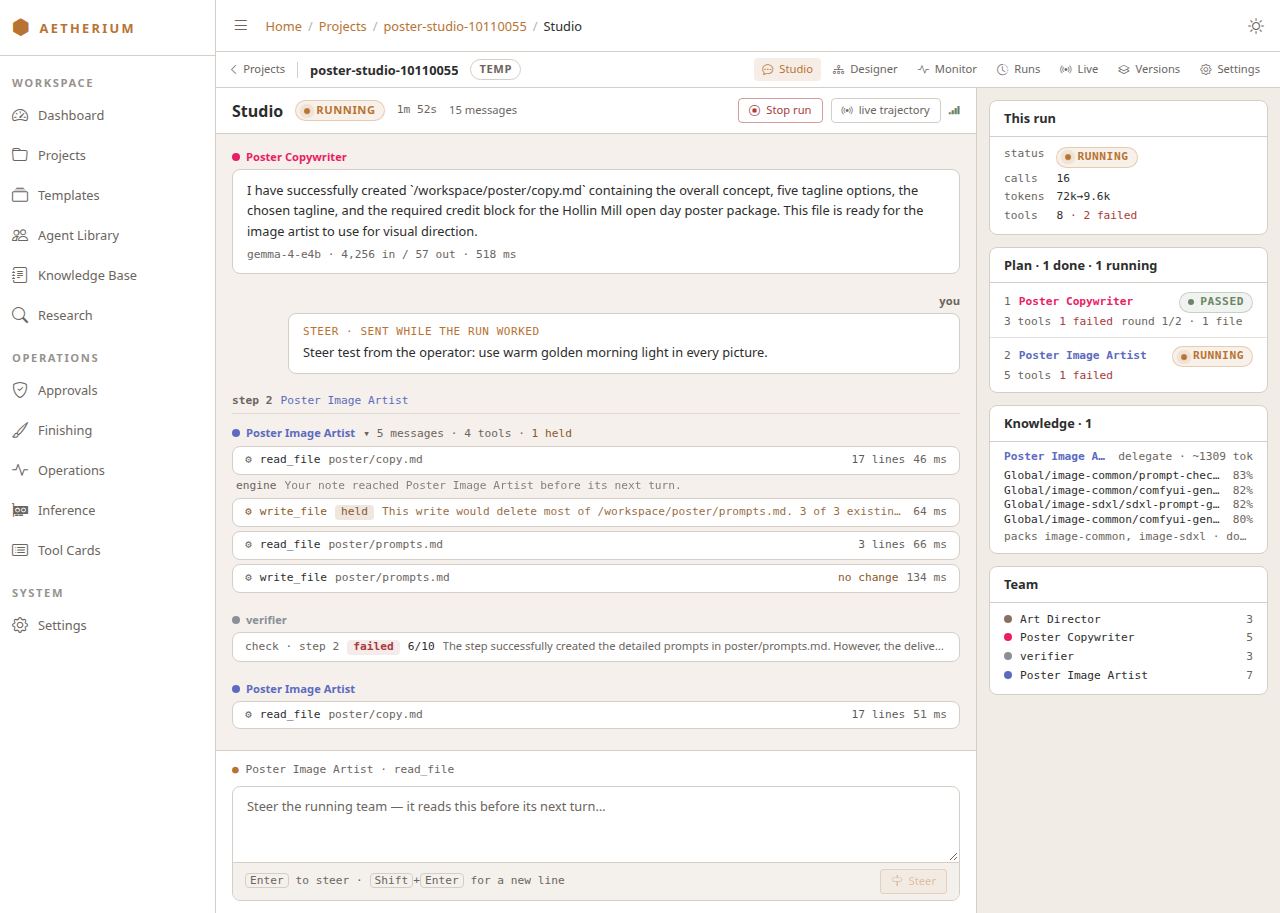
The conversation. Your messages sit on the right, labelled you. The conversation is divided by run and by plan step: a run line where each run starts, and a step line naming the agent at each step. The supervisor's plan reads as a list of who does what and which file each step owes. Each tool call an agent makes is one line: the tool, the file it touched, the outcome (created, no change, a before → after size) and how long it took. Click a line to open its card: a READ card for a file the agent opened, a DIFF card for a file it wrote or changed (with the lines that changed), and other cards for shell commands and searches. A failed call stays folded with its error in red on the line, and the same failure repeated is one line with a count. A write the Aetherium Engine refused on purpose (it would have deleted most of a file) is amber and marked held: nothing is broken, and the agent was told how to go on. Pictures appear as thumbnails under the call that made them; click one to open it full size.
The checks. After each step the checker reads the step's files. Its verdict is a chip in the conversation: passed or failed, a score out of 10 and the reason, with the issues when you open it. When the run ends, the run judge adds one for the whole run, and a result card under the conversation says how the run ended, with the run's pictures. A failed run's card opens on why it failed, when the Engine recorded a reason, with the run's summary folded under the steps. A run that completed but still needs your eyes reads run completed · needs review, in amber, with the reasons listed: each step that finished although the checker failed it or could not decide; each file an agent owes that is not there when the run ends; each page whose links, read again at the end, miss a file they owe or point at one that does not exist; and each page that, once the run is over, shows fewer of a folder's pictures than it owes or links a file that does not exist. A checker's failure does not fail the run, so the run is still Completed; the badge on the Live tab says needs review as well.
The run rail. Beside the conversation, This run shows the run's status, its model calls, the tokens they used and how many tool calls failed. Plan lists each step with the agent doing it, its tool count and its status: passed, completed, check failed (amber: the step finished but the checker failed it), failed, skipped or running. Team lists the agents, each in the colour it has everywhere else, with its row count for this run; the Engine's own checkers are grey. On a narrow window the rail is replaced by a one-line summary above the conversation.
Live trajectory. The live trajectory button at the top right opens the run on the Live tab: every call as it lands, with its arguments and result, grouped by agent. follow keeps the newest row selected as it arrives; clicking any row switches it off so you can read. Runs the project has already finished stay above the current one, folded.
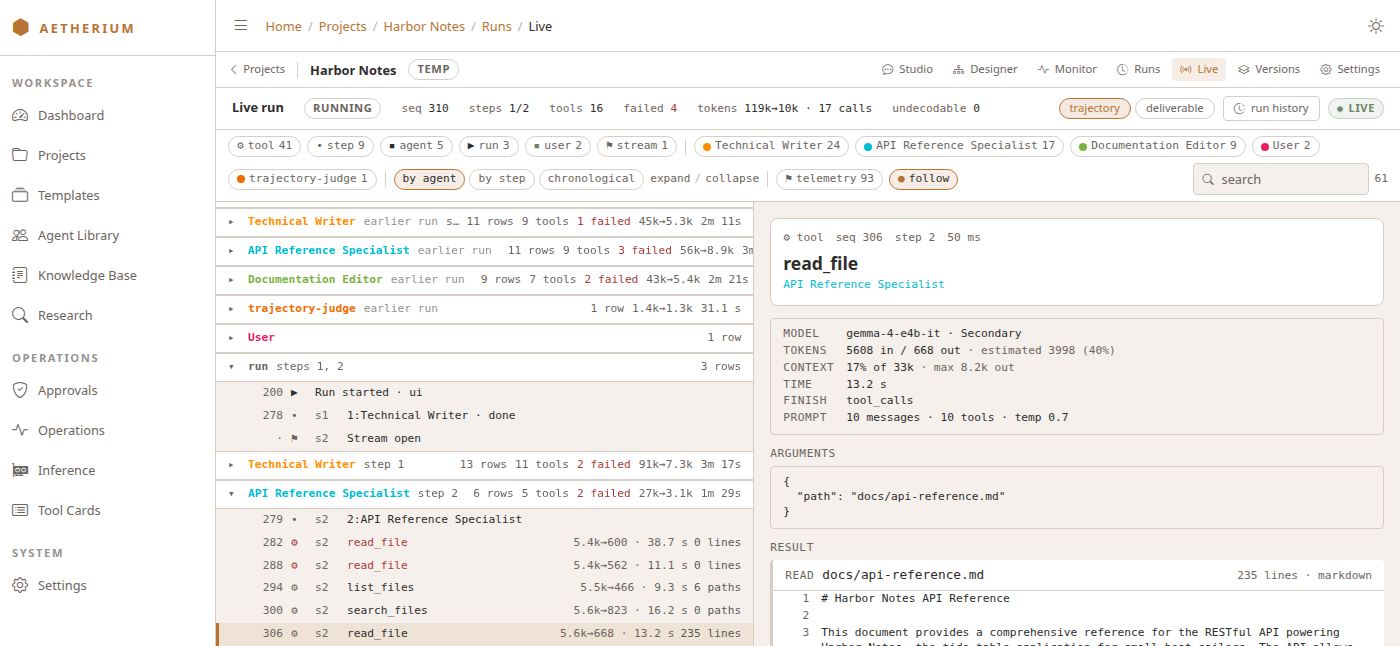
Twenty-four seconds of a live run, recorded on an earlier version of this view — a lead planning, three workers starting their steps, and the first tool calls landing:
Steering and stopping
While the team is running, the message box changes to "Steer the running team — it reads this before its next turn…" and Send becomes Steer. Type a course correction and send it — the agent that is working sees it before its next turn, without restarting anything. The Studio confirms with "Steer queued", your note appears in the conversation marked as a steer, and a line follows when it has reached an agent, naming which one.
Stop run ends the run. It is the hard cancel: the current tool call is not allowed to finish. If you only want to nudge the team, steer instead.
The Monitor
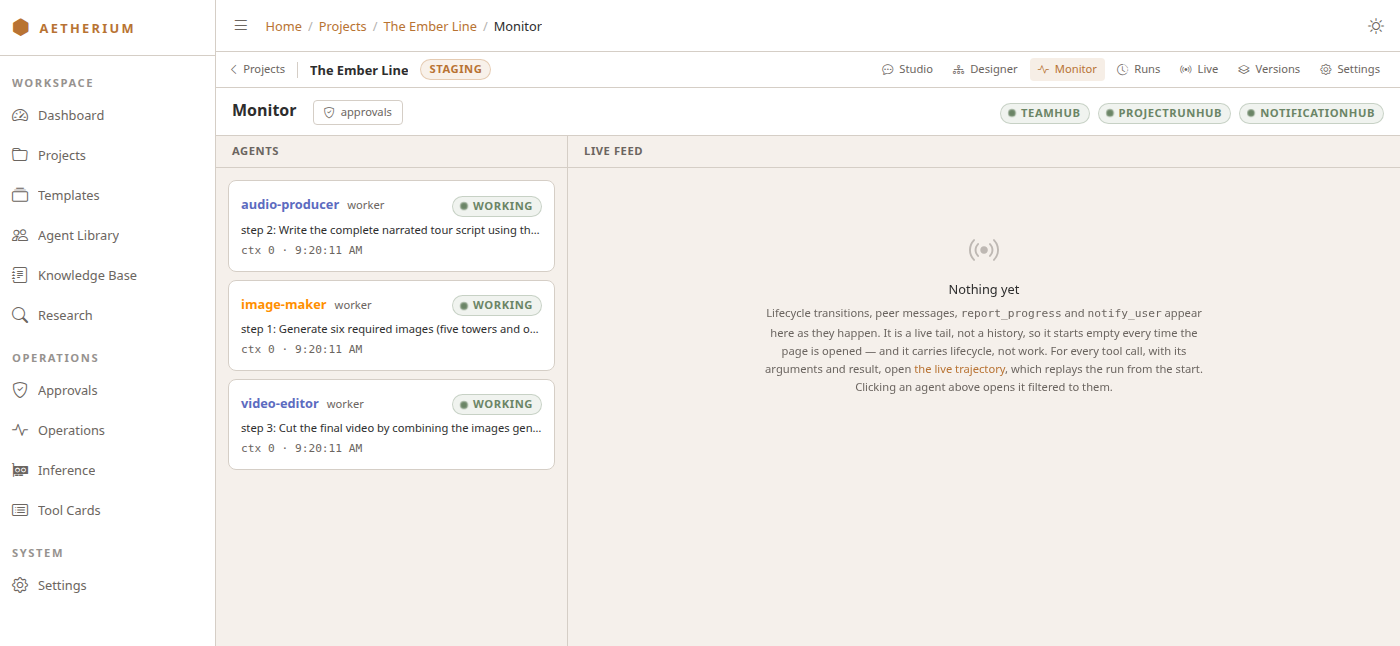
The Monitor tab is the live view of the team: every agent with its current state on the left, and a feed of what just happened on the right — lifecycle changes, messages between agents, progress reports, and notifications addressed to you. It is a live tail, not a history: it fills while the project runs and starts empty each time you open it.
Runs and trajectories
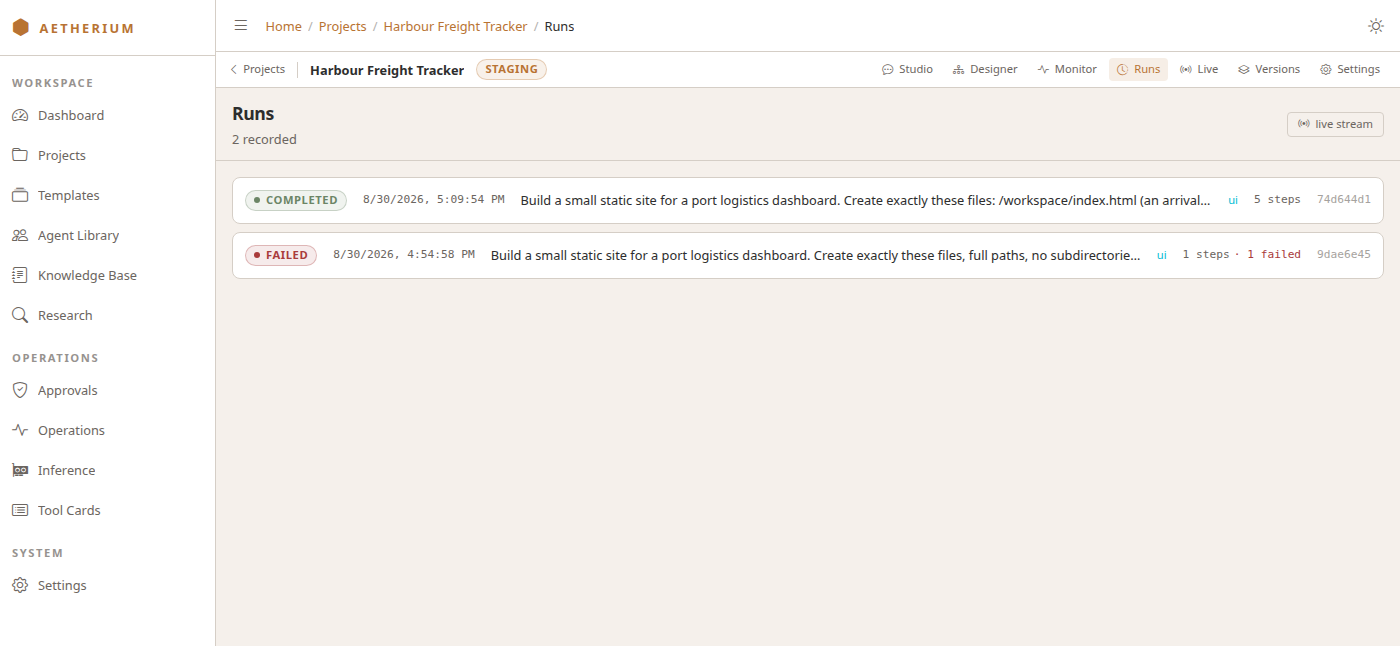
The Runs tab lists every run of the project, newest first: its status, when it started, the message that started it, how many steps it had and how many failed. A failed step fails its run, with two exceptions on a planned (Hierarchical) run. A step that failed and then ran again is judged on its newest attempt, so a run that recovered reads Completed and the failed attempt still counts among its failures, as the record of the recovery. A step that failed only its own tests while getting more of them to pass keeps its files, and is decided by a later step: when a later step completes with its tests passing, at least as many as the kept step ran, the run can still read Completed. A planned run that builds pages also fails when, at its end, a page's requests fail against the code the run finished with.
Open a run and you get its trajectory: every row the run produced, in sections you can fold — by agent (the default), by step, or chronological. The header carries the run's counts, tokens and wall time, and the verdict strip its score out of 10 with the parts behind it. Filter by kind of row or by agent, search, and click any row to see the model call behind it (model, tokens, how much of the context it used, time), its arguments, and its typed result card. The Aetherium Engine's own events — the prompt it assembled, token usage, cache — are folded onto the rows they describe; the telemetry chip shows them raw.
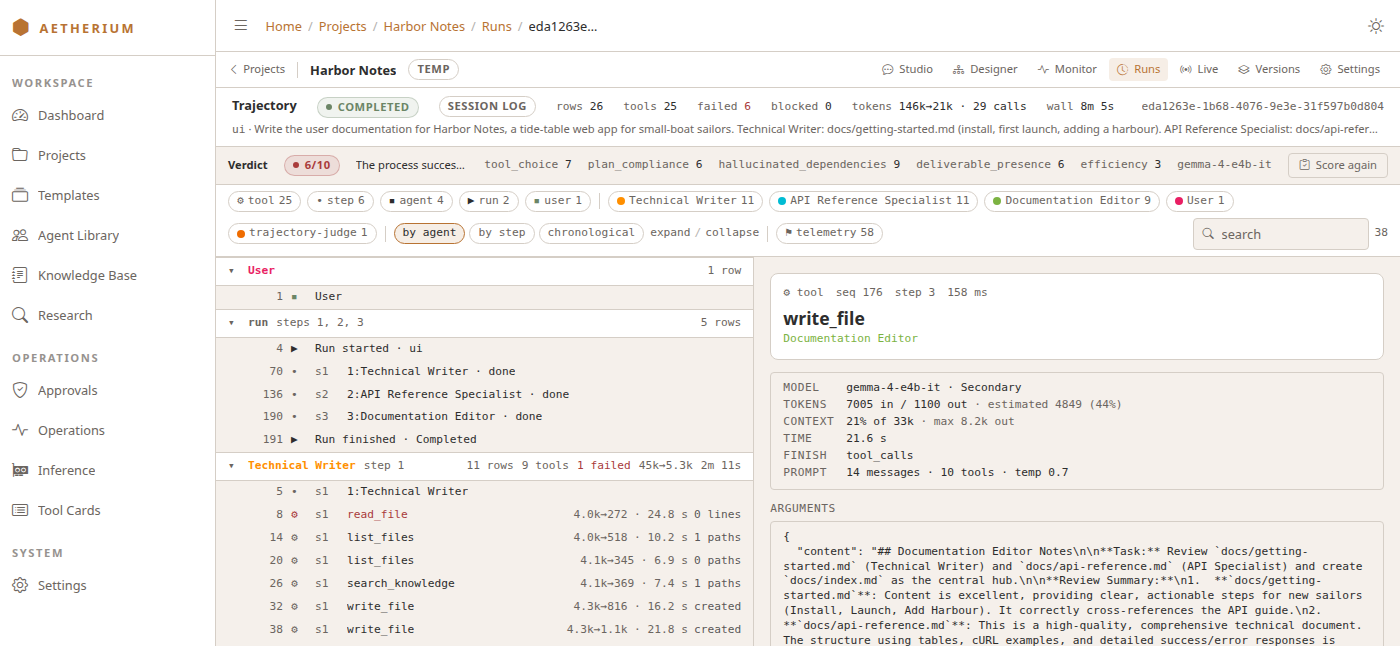
Approvals
Some tools are Restricted: when an agent asks for one, the run pauses inside the agent loop and waits for a person. Approvals (in the sidebar under Operations) is where those gates appear, with the tool, its arguments and the agent asking. A gate lasts at most five minutes; unanswered, it is denied and the tool call fails. The approvals button on the Monitor takes you there too.
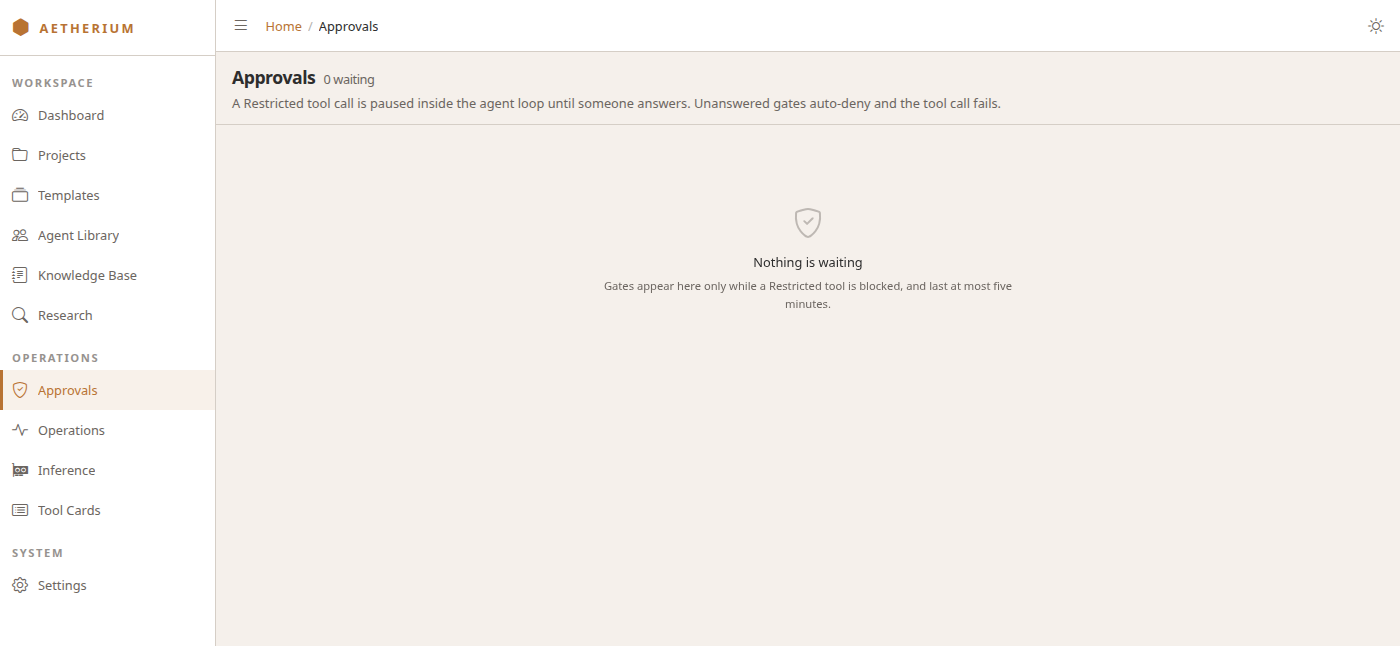
No progress bar
There's no overall percent-complete indicator. You gauge progress by the Plan panel in the Studio's run rail and the agents' states on the Monitor — a run is done when the Studio badge changes from running to how it ended (completed, failed or cancelled, with its duration) and the run appears in Runs.
Next: getting your output.